For power users & AI agents
Run Tela from your terminal, or your LLM
The Tela CLI lets you list, manage and check your account from the command line, and lets AI assistants like Claude Code do it for you. Two commands to start:
npm i -g @tela-app/cli
tela auth login
Built for your AI
Point Claude Code (or any agent) at Tela: “list this from ./coat.jpg” and it reads the photo, picks a category, and creates the listing. The CLI gives the actions; your LLM brings the judgement.
Safe by design
You sign in with a scoped, revocable token, never your password. A token can never move money: no payouts, refunds, or checkout, and it can’t delete your account. Every permission is enforced by Tela’s servers.
Fast + scriptable
Bulk-check orders, audit your listings, or wire Tela into your own tools. Human tables by default, --format json for scripts, one login and you’re set.
Get your token
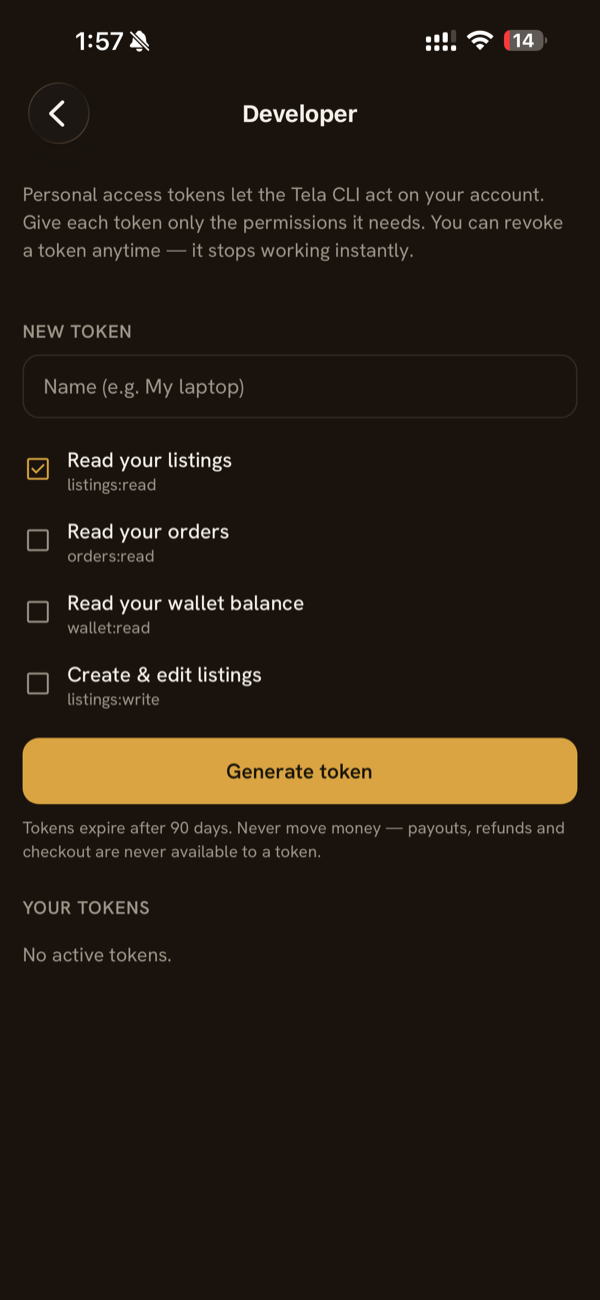
The CLI never uses your password. Instead you create a scoped personal access token in the app and pick exactly what it can do.
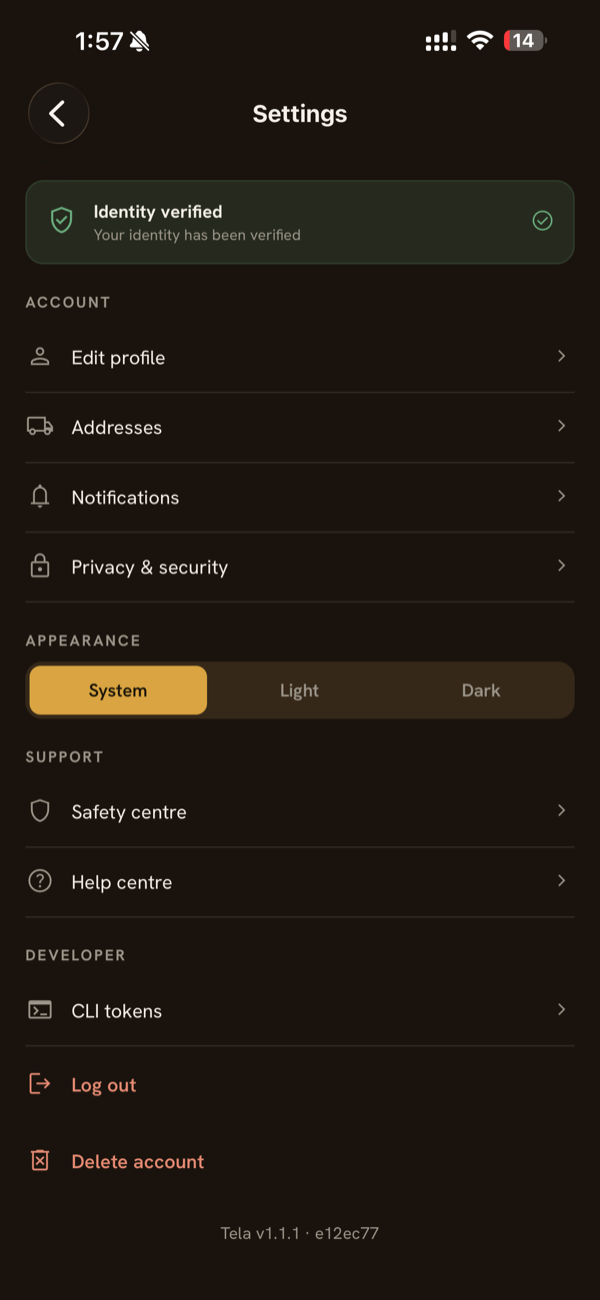
- 1Open the Tela app and go to Settings → Developer → CLI tokens.
- 2Name the token, tick only the permissions it needs, and tap Generate. Copy it: it’s shown once.
- 3Run tela auth login and paste it at the hidden prompt. Done.
What you can do
See your listings, orders and balance
tela listings
tela orders
tela wallet
Create a listing from photos on your machine
tela categories
tela listing create \
  --title "Acne Studios wool coat" --price 129.90 \
  --category w-outerwear --condition like-new \
  --image ./front.jpg --image ./back.jpg
New listings go live once they pass the same moderation as the app. A token can never move money.
Use it with Claude Code
Install the CLI, sign in once, then just ask your AI assistant in plain English. It runs the commands and reads your local photos:
- “List my Tela orders still waiting to be shipped.”
- “Create a Tela listing from ./dress.jpg, pick the category and a fair price.”
- “What’s my Tela wallet balance?”
Prefer no terminal? Use the connector
The same actions as a native connector (MCP), so Claude or ChatGPT can manage your Tela account without the command line at all.
Connect Tela to Claude & ChatGPT· written by the Tela team in Singapore